Create a new password
Passwords are used less often now that PIN and biometrics have taken over. That is good for security, because usernames and passwords are sought after by criminals and can open the door to the company network, but it also makes your password easy to forget. The good news is that you can reset it yourself in a couple of minutes, which is quicker than waiting for support.
Click the button below to open Microsoft's password reset page. It opens in a new tab, so you can follow the steps here while you go.
Start password reset at Microsoft
Before you start
You need Microsoft Authenticator on your phone and to have registered your mobile number at an earlier sign-in. If you don't have this in place, please contact support.
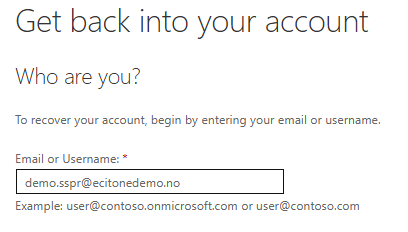
Enter your email address
Enter the email address you sign in with, and the characters shown in the picture. This confirms that you are a person.
Confirm it's you
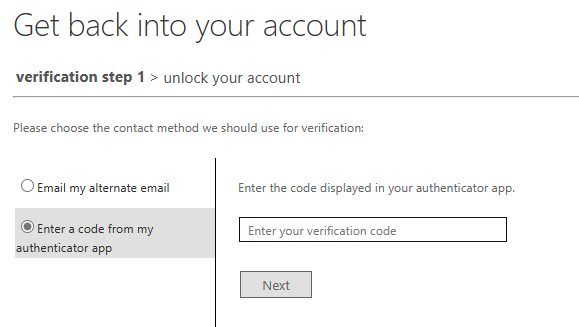
Choose one of the methods you have already registered. The options you see depend on what you have set up.
- Text my mobile phone or Call my mobile phone: you receive a one-time code by text message or in a phone call. Both options will be removed from 1 February 2027.
- Approve a notification on my authenticator app: enter the code shown on the web page in Microsoft Authenticator.
- Enter a code from my authenticator app: open Microsoft Authenticator and enter the one-time code you see there.
In the example below, we use a code from the authenticator app.
Confirm once more
For security reasons, you need to confirm your identity with one more method. The method you used in step 2 cannot be used again. If you entered a code from the authenticator app in step 2, choose Approve a notification on my authenticator app this time. Both use Microsoft Authenticator, but Microsoft counts them as two separate methods. Select Send Notification, then open Microsoft Authenticator on your phone and approve the sign-in.
Choose a new password
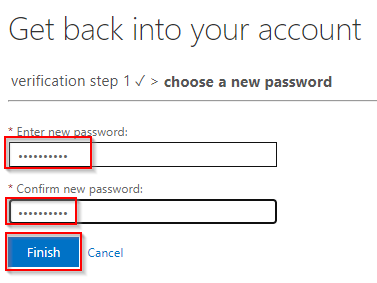
Enter your new password twice and select Finish. You can now sign in with your new password.